
Fine-tune your dub with the Advanced Editor
Once your dub is finished, the Advanced Editor is where you go to refine it — fix transcription mistakes, polish the translation, swap a speaker, or correct pronunciation segment by segment. It's the same data as the inline list view in the Edit Translation tab, just in a full-screen split-screen layout that's much faster to work in when you have more than a couple of changes to make. This article walks through what the Advanced Editor offers, how the per-segment edit flow works, and what happens when you click Update to re-render the final video.
When to use the Advanced Editor
Reach for the Advanced Editor when:
You want to hear your changes immediately. This is the most efficient way to listen to edits without having to re-generate the entire video.
You want to scrub through the video and edit segments directly alongside the source playback.
You have more than a couple of edits to make—the side-by-side view is significantly faster than using inline cards.
You want to toggle between source and dubbed audio for each specific segment instantly within the editor.
You're reassigning speakers and want to preview library voices before applying them. Pro Tip: For a single, minor text fix, the inline editor in the Edit Translation tab is sufficient. However, for anything involving audio fine-tuning, the Advanced Editor is the better choice.
Opening the Advanced Editor
Open your finished dub from My Dubs
Switch to the Edit Translation tab
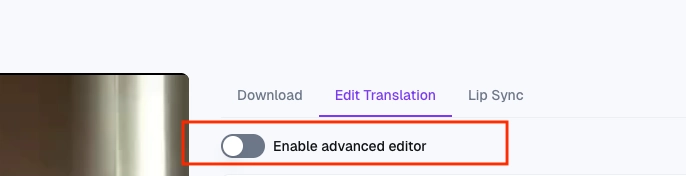
Toggle on the Advanced editor switch at the top of the tab The view expands to a full-screen layout with a draggable video preview, source text on the left, and the target language on the right. If Lip-Sync is currently processing for this dub, the Advanced Editor is locked until Lip-Sync finishes — use the inline list view in the meantime if you need to make notes.
What the split-screen view shows
For each segment you'll see:
Timestamp and duration — read-only; the segment boundaries come from your source audio
Source-language column (left) — the transcription of what was said
Target-language column (right) — the translated text that will be voiced
Listen buttons on each side to play the original audio and the current dubbed audio for that segment
A speaker dropdown at the top of the segment with the assigned voice
A Play preview button next to each voice so you can audition voices before applying
What you can edit per segment
Source text
Fix anything the transcription got wrong — names, technical terms, missing words, wrong numbers. When you save a source-text change, Dubly re-translates that segment using your current Translation Style, then re-generates the dubbed audio.
Order of operations matters: if you've already tweaked the translation on this segment, editing the source afterwards will overwrite your translation. Always fix the source first, then the translation. See Editing a segment: original text and translation for the full breakdown.
Target / translated text
Rewrite the translation directly. Brand names, tone, formality, regional wording — anything you want to control. Saving a target-text change keeps your translation locked in (no auto re-translation) and only re-generates the dubbed audio for that segment.
Speaker assignment
If the auto-detection put the wrong speaker on a segment, open the dropdown, Play preview on each option to compare, and pick the right one. Saving the speaker change re-generates that segment's audio with the new voice. No other segments are affected.
What you can't change here
Segment timing — the start/end timestamps are read-only. Boundaries come from your source audio.
Splitting or merging segments — not supported. If a segment is too long or too short, the fix is upstream in your source video.
Per-segment Lip-Sync toggle — Lip-Sync is all-or-nothing per language.
Re-importing an SRT file to bulk-update text — edits happen in the editor, not via subtitle upload.
A note on the "Edited — regenerate video first" message
If you edited a segment in the inline list view (not the Advanced Editor) and that change is still pending re-sync, the Advanced Editor shows Edited — regenerate video first on that segment and locks further edits until it finishes. Wait for the re-sync to complete before adding more edits, or click Update to roll the pending changes into a fresh render.
Updating the final video
This is the step that actually rebuilds the file you'll export and share. Once you have any segment marked Edited, an Update card appears (top-right in the Advanced Editor, or below the player in the normal view) titled Regenerate video after all changes have been made. Clicking Update:
Confirms all pending segment audio re-syncs are finished
Stitches every segment's audio back together — changed and unchanged — into the full audio track
Re-renders the entire final video with the updated audio
If Lip-Sync was enabled, re-runs Lip-Sync on the affected segments While this runs, the dub shows Updating is in progress. When it finishes, the player at the top of the dub detail page automatically shows the new version, and you can re-export.
Cost
Updating is free. No credits are charged for re-rendering after you've edited segments — the dubbing cost was already paid when the dub was first created. The only re-render that costs credits is Lip-Sync, which is billed separately at 1 credit per started minute and is only re-charged if you specifically click Start lip sync again on a completed Lip-Sync.
Recommended workflow
For anything more than a single fix, work in batches:
Open the Advanced Editor and play through your dub once, noting the segments that need fixes
Fix all source-text issues first (transcription errors, names, numbers). Save each one. Each segment's audio re-syncs in the background.
Then fix translations and speaker assignments. Save each one.
Wait until all segments show Edited and none are still in Processing
Click Update once. The full video re-renders using all your changes at once. This avoids triggering multiple full-video re-renders back-to-back — each one takes a few minutes, and they're unnecessary if you batch your edits.
Tips
Listen before you save. The Listen button on the target side plays the current dubbed audio for that segment — useful to confirm whether an edit is even needed.
Preview voices when reassigning speakers. A voice that looks right on the list might not match the speaker's energy. The Play preview button uses your actual content for the preview.
Match the length of the source. A translation that's much longer or shorter than the original can throw off the rhythm and cause the dub to feel rushed or stretched.
Stay consistent across languages. If you fix a brand name in one target language, fix it in the others too — each target language is edited separately.
Don't add stage directions or notes to source or target text. Whatever's there gets read literally by the voice or fed into the translator.
When to contact support
Write to hello@dubly.ai if:
A segment's audio stays in Processing for more than 30 minutes after Save
The full Update finishes but the player still shows the old version after a refresh Include the dub link and the segment timestamps you were working on so we can investigate quickly.