
Voice options: Studio voices and voice cloning
Dubly.AI gives you three ways to decide how the dubbed version sounds. This article explains each mode, when to pick it, and how Custom Voices fit in.
Where you pick it
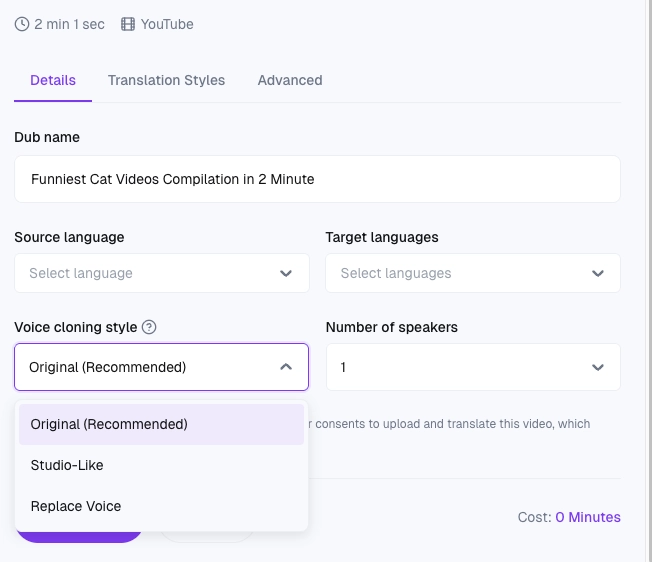
In the dub creation modal, in the Details tab, there's a Voice Cloning Style dropdown with three options:
Original (Recommended)
Studio-Like
Replace Voice
Default is Original. You pick once per dub — the same mode applies to every target language in that dub.
Original
The speaker's own voice is cloned and used in the target language. Listeners hear the same voice they would in the source, but speaking the new language. Best for:
Keeping a CEO's, founder's, or brand spokesperson's voice consistent across markets.
Talking-head content (interviews, product tours, training videos) where viewers know the speaker.
Anything where voice recognition matters more than polish. The clone sounds natural and authentic — but also carries whatever quirks the original recording has (sibilance, accent, breathiness).
Studio-Like
This mode clones the speaker's voice but smooths it into a cleaner, more "produced" sound—mimicking a professional studio recording. Best for:
Ads and marketing content where a high level of polish is essential.
Videos with mediocre source audio (e.g., background noise or harsh room acoustics), as the "Studio-Like" setting effectively cleans up these artifacts.
Content requiring a refined version of the speaker's voice identity.
While this setting cleans up messy audio, it often results in a slight loss of the speaker's unique "character." Crucially, if your source video already features high-quality audio, we recommend staying with the "Original" setting. Applying "Studio-Like" to already excellent audio can often be counterproductive—"over-improving" it to the point where it sounds less natural or loses its authentic warmth.
Replace Voice
The original speaker's voice is replaced with a voice from our voice library—either a preset voice or a Custom Voice you've added to your organization. Best for:
Voice-over content where the speaker's specific identity is not a priority.
Legal and Licensing requirements: This is a key use case when you do not have the rights to use the original speaker's voice; it allows you to legally distribute the content using an alternative voice.
Unusable source audio: Ideal for videos with heavy distortion, overlapping voices, or overall poor quality.
Brand Consistency: Maintaining a uniform brand voice across different creators by using the same library voice for every video.
When you select Replace Voice for a video with multiple speakers, Dubly will pause at the "Assign Voices" stage. This allows you to manually pick a specific library voice for each individual speaker.
Custom Voices
If your organization has access to Custom Voices, you can save specific voices (your own clones, or voices from a voice library) so they show up as options in the Replace Voice library.
How to Set Up a Custom Voice
Please note that the final integration is handled by our team:
Contact Support: Reach out to our Support team to request the addition of a new Custom Voice.
Provide Details: To get started, we'll just need a quick audio clip for cloning. If you're looking for a library voice instead, just let us know the specific tone and style you're aiming for
Activation: Once the Support team adds the voice under Settings → Custom Voices, it will become available to everyone in your organization.
Custom Voices are account-level — anyone on your team can pick them when creating a dub.

If you don't see the Custom Voices section in Settings, this feature isn't enabled on your plan yet. Contact hello@dubly.ai to turn it on.
Previewing voices before the dub starts
In the dub creation modal itself, the Voice Cloning Style dropdown doesn't give you an audio preview — it's just a mode switch. For Replace Voice, once the dub reaches the Assign Voices step (for multi-speaker videos), the assignment modal includes play buttons for each preset voice so you can hear it before confirming. For single-speaker Replace Voice dubs, Dubly picks a reasonable default automatically.
Voice quality requirements
For Original and Studio-Like to sound great, the source audio of the speaker needs to be reasonably clean. No hard minimum is enforced by the system, but in practice:
Close-mic'd dialogue works best.
Background music under the speaker should be at least 12 dB quieter.
Avoid heavy voice effects (deep reverb, telephone filter, auto-tune) — they confuse the cloner. If your source audio is too rough for a decent clone, use Replace Voice instead.
Consent — important
Cloning a voice requires consent from the speaker:
Your own voice — consent is implicit when you use your own video.
Someone else's voice — you need their written consent before uploading. This applies to both Original and Studio-Like modes, since both clone the source speaker. Using a cloned voice without consent is against our Acceptable Use Policy and can result in account suspension. When in doubt, use Replace Voice with a library voice instead.