
Export your dub as an SRT subtitle file
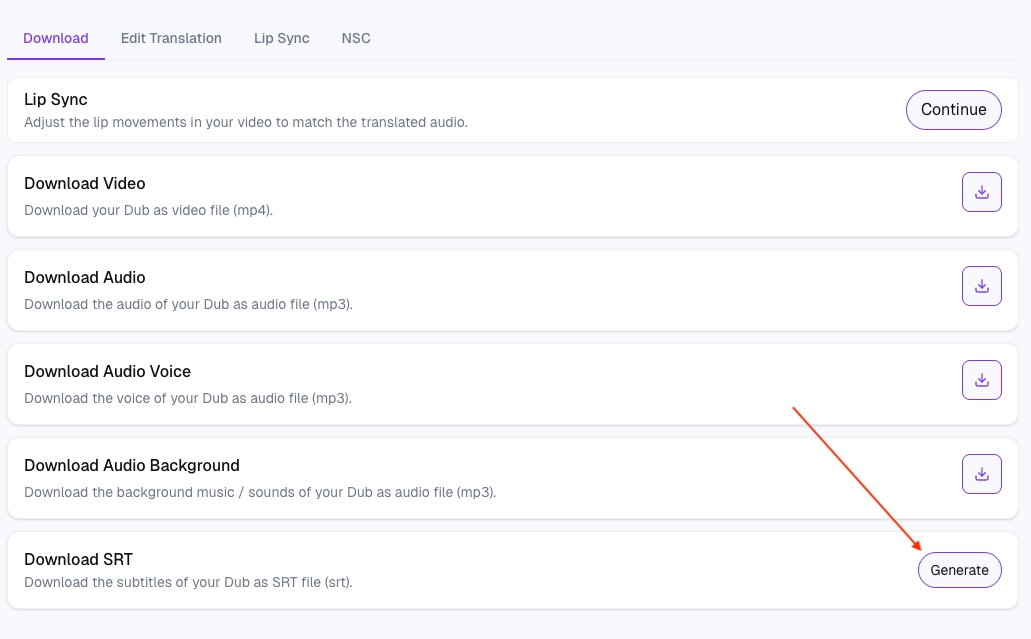
You can download an SRT subtitle file for any completed dub. SRT files contain the timed text of your translation — useful for adding subtitles in YouTube, importing into a video editor, or handing off to a translator for review.
What you get
An SRT file for the target language you choose, with:
Sequential subtitle numbers
Start and end timestamps for each segment
The translated text for that segment You get one SRT per language version. If you dubbed into 4 languages, you can download 4 separate SRT files.
How to download an SRT
Open your dub, switch to the language you want subtitles for, and look for the SRT download option. Once it's ready, you'll get a .srt file you can open in any text editor or upload directly to YouTube as a caption track.
What SRT files are not
Not an audio file. SRT only contains text. The dubbed audio stays in your rendered video.
Not a burned-in subtitle layer. Dubly.AI doesn't currently render subtitles directly into the video file. If you need burn-in, take the SRT into your video editor and add it there.
Not a project file. You can't re-import an SRT into Dubly.AI to update an existing dub. Edits to a dub happen in the segment editor, not via SRT round-trip.
Editing the SRT
If you want to fix wording in the SRT, edit the file in any text editor (TextEdit on Mac, Notepad on Windows, VSCode, etc.). The format is plain text with a specific structure:
1
00:00:00,000 --> 00:00:03,500
First subtitle text here.

2
00:00:03,500 --> 00:00:07,200
Second subtitle text here.
Don't change the timestamps unless you know what you're doing — the timing has to match the dubbed audio. If you want changes to be reflected in the dubbed audio (not just the subtitles), edit the segment in Dubly.AI directly — the SRT will regenerate to match.