
Editing a segment: original text and translation
Your dub is broken into segments — short pieces of speech that get transcribed, translated and voiced one at a time. Each segment corresponds to a stretch of your source video where someone is speaking.
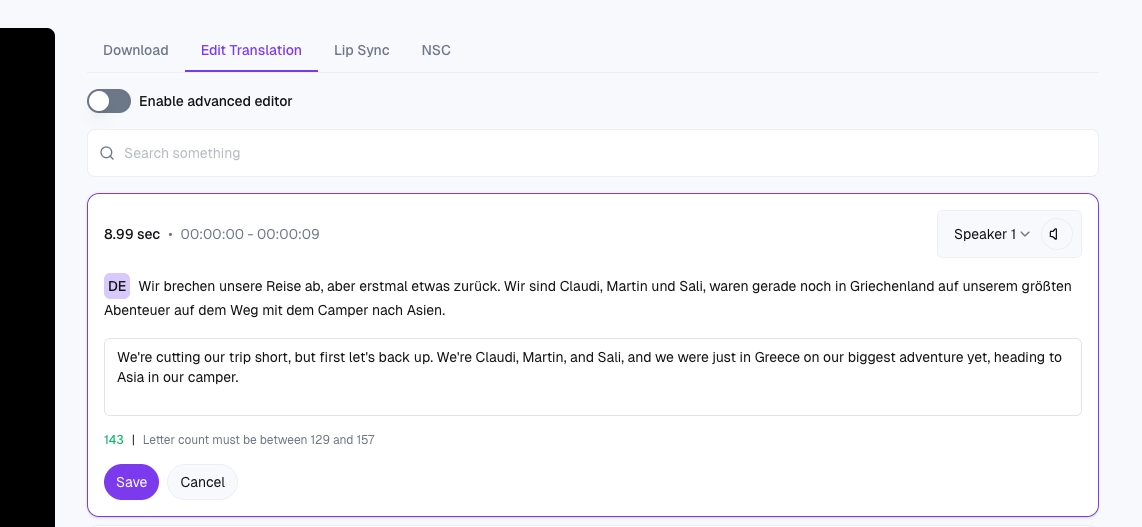
You can edit segments after the dub is generated to fix transcription errors, fine-tune translations or assign the right speaker to each line. Editing a segment regenerates only that segment's audio — it doesn't reprocess the whole dub.
There are two kinds of edits you can make on a finished dub: fix the original text (the transcript of what was said), or fix the translation (the target-language version). They have very different downstream effects. This article covers both — and which one to reach for in which situation.
What you can edit on a segment
The original text — fix anything the transcription got wrong.
The translated text — adjust word choice, names or tone in any target language.
The speaker — assign the segment to the correct speaker if the auto-detection got it wrong.
What you can't change
Segments are split automatically based on the speech in your source. You can't merge two segments into one or split a segment into smaller pieces — those boundaries come from the original audio. If a segment is too long or too short for what you need, the fix is upstream: change the source video, or adjust the audio before uploading.
Order of operations
If you want to change both the original and the translation:
Fix the original text first. Saving an original-text change may trigger a fresh translation, which would overwrite a translation tweak you'd already saved.
Then adjust the translation.
Edit the original text — when transcription got it wrong
Dubly.AI transcribes your source video automatically, but no transcription is perfect. Names, technical terms, and unusual words sometimes come back wrong — and a wrong transcription means a wrong translation. Editing the original text fixes both at once.
Reach for this when:
Names of people, products, or places were transcribed phonetically (e.g. "Jana" became "Yanna").
Technical terms or jargon were turned into the closest common word.
A whole word or phrase is missing because the transcription cut off a quiet line.
Numbers, dates, or units came out in the wrong format.
Edit the translation — when translation got it wrong
Even a good translation isn't always the right translation. Brand wording, product names, formal vs. informal tone, and regional preferences all matter — and you can override the auto-translation directly on each segment.
Reach for this when:
A product or brand name should stay in the original language instead of being translated.
The tone is too formal or too casual for your audience.
A specific term has an established translation in your industry that the auto-translator missed.
Wordplay or a culturally-specific reference doesn't carry over and needs a localized rewrite.
How to edit
Open the dub and stay in the Edit Translation tab. Find the segment with the problem.
To edit the original text, rewrite it in the source-language field.
To edit the translation, switch to the target language using the language selector and rewrite the translated text.
Save when you're done.
What happens after you save
Saving an original-text change
Dubly regenerates everything downstream of that segment — the translation, the dubbed audio, and (if Lip-Sync is on) the lip-sync. Only the segment you edited is regenerated; the rest of the dub stays as it was.
Heads up: because the translation gets regenerated, any translation tweaks you'd already saved on that segment will be lost. Edit the original first, then the translation — not the other way around.
Saving a translation change
Dubly regenerates the dubbed audio for that segment — and only that segment. Lip-Sync re-runs on the new audio if Lip-Sync is enabled. The original-language text and the other target languages aren't touched.
Working with multiple target languages
You're editing one target language at a time. If the same name or brand term should be the same in every language, you'll need to fix it in each language separately.
Tips
Match the length of the original where you can. A translation that's much longer or shorter than the source can throw off the rhythm of the dub.
Read it out loud. What looks fine in writing sometimes sounds awkward when spoken.
Keep brand and product names consistent across your whole dub — and across all dubs in the same project.